Your status at a glance
The flag is your exit country and the badge your latency: green when all is well, orange for a slowdown or an exit change, red when the connection drops.
Network monitor for the Mac menu bar
Glow is a network monitor for the Mac menu bar. A flag and a latency badge sit up top; one click opens the whole path, from your Mac and router to the exit.
Requires macOS 14 or later · English, Simplified Chinese and Traditional Chinese
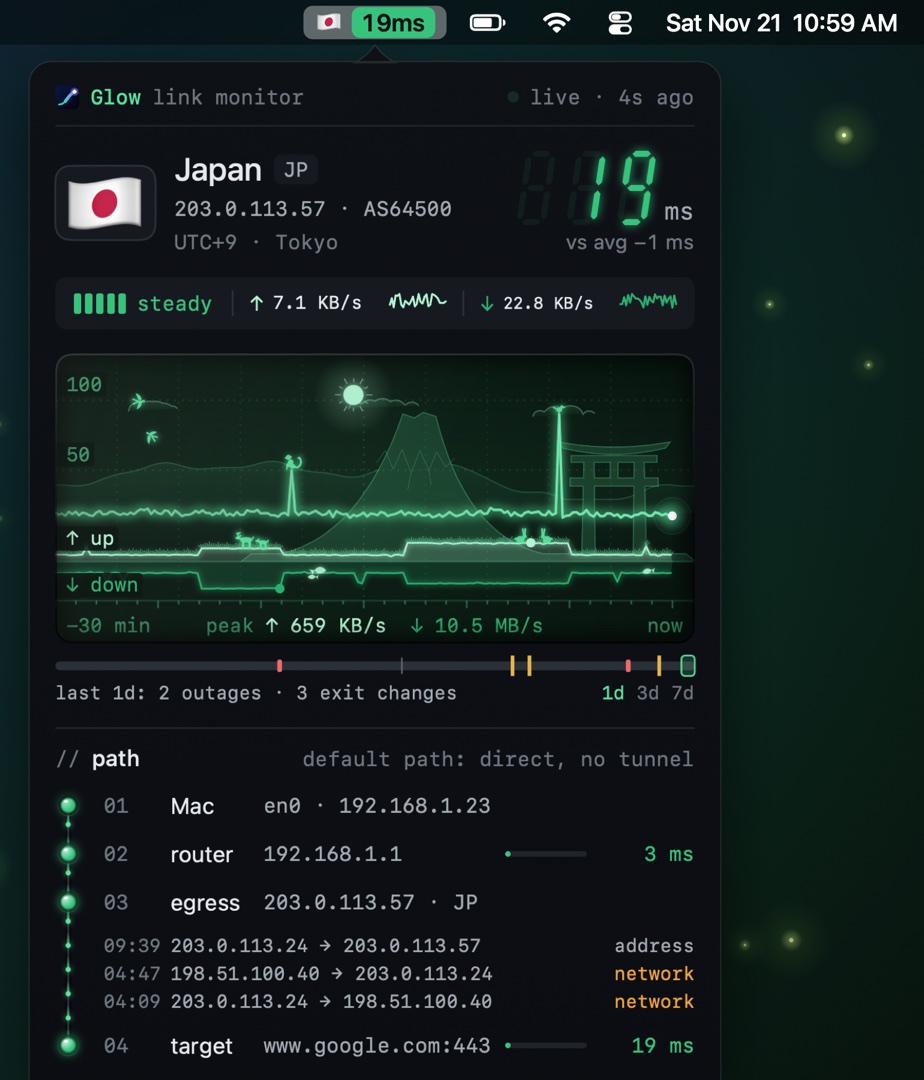
The flag is your exit country and the badge your latency: green when all is well, orange for a slowdown or an exit change, red when the connection drops.
Your network interface, router, exit address and country in one row, so you can see which link is in trouble. Router latency is measured separately, telling a slow home network from a slow line further out.
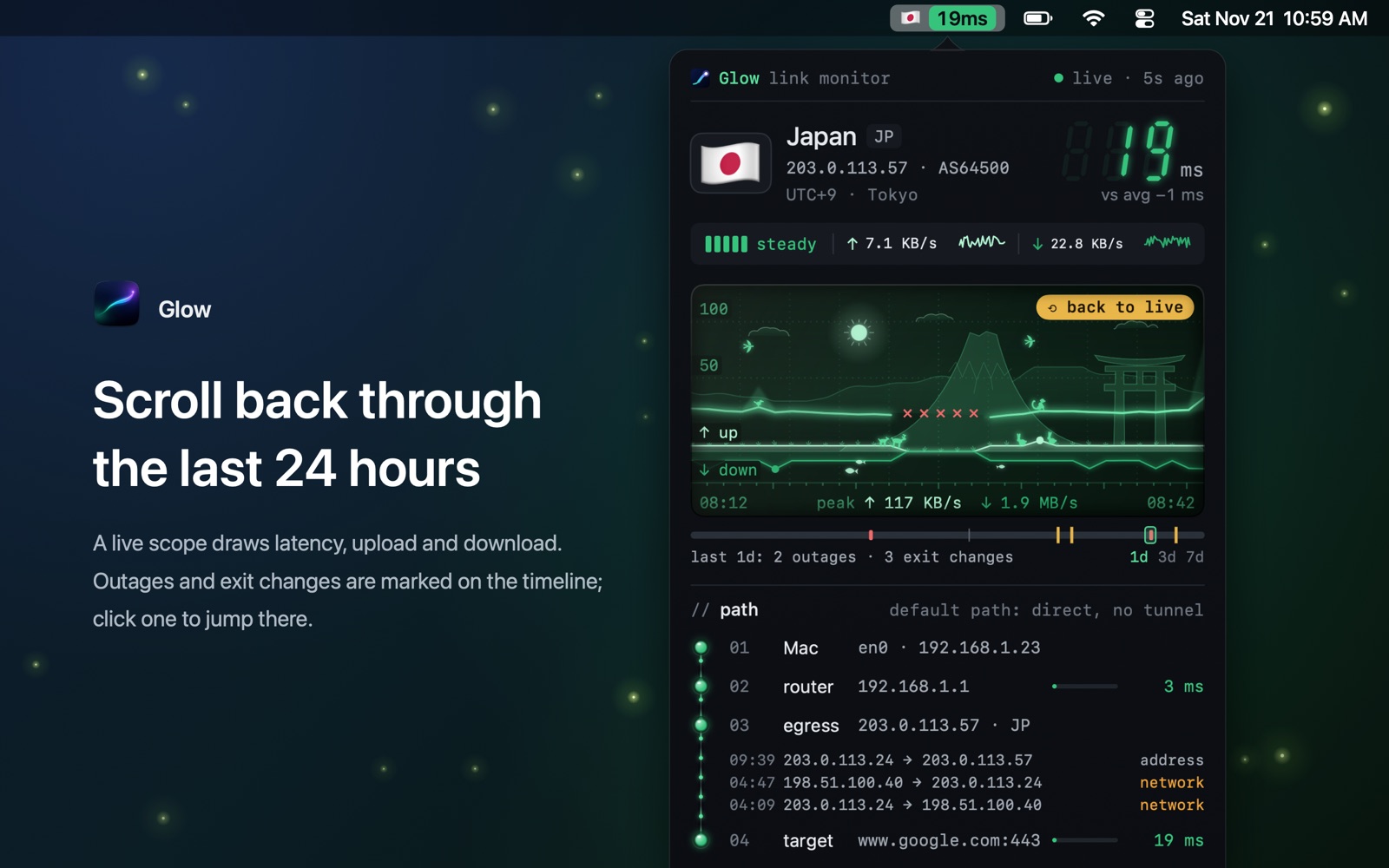
A live scope draws latency, upload and download, and you can scroll back through the last 24 hours. A timeline marks outages and exit changes, which are kept for 7 days.
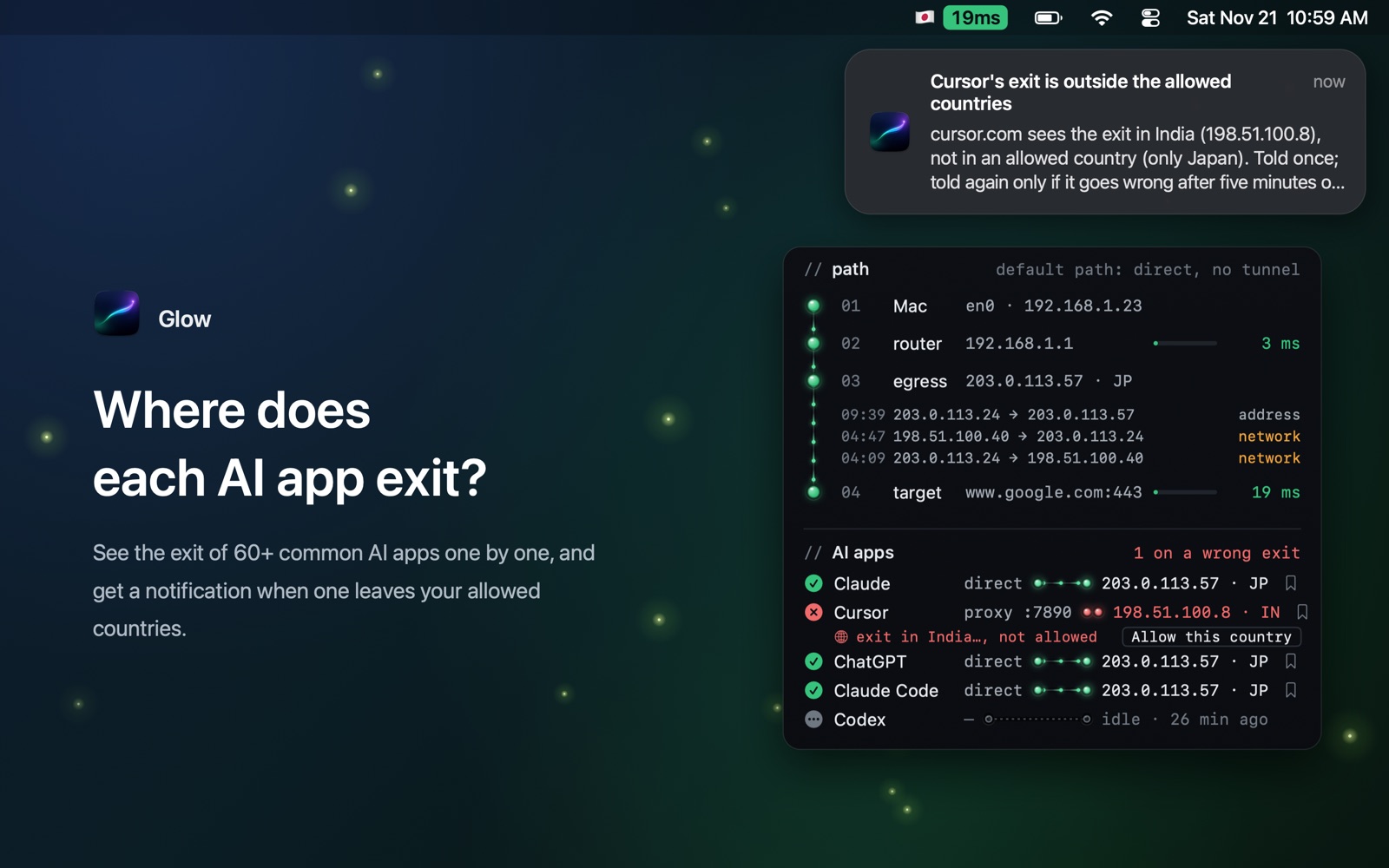
Glow recognizes 60+ common AI apps and command-line tools, shows which country each one exits from, and notifies you when one leaves your allowed countries.
The sun follows its real path, and at night the moon and the Big Dipper come out. Animals roam the meadow, and an exit in Cambodia, the US, Japan, the UK, France and more raises a local landmark.
No account, analytics, ads, crash reporting or third-party SDKs. Everything Glow records stays on your Mac.

No. Glow does not create, connect or disable any VPN or tunnel, does not route or intercept other apps' traffic, and never changes your network settings. It only watches and notifies, and it never pauses or disconnects any app.
Green: all is well, and the number is your current latency. Orange with a "!": a slowdown or an exit change. Red with a "×": the connection is down. Gray: Glow is still checking, or no baseline has been confirmed yet.
The first time, confirm a baseline once: open the main window and, in Overview, click "Confirm as trusted baseline". From then on the badge is green whenever all is well.
No. When the connection drops, the badge turns red and the panel's timeline marks it in red, kept for 7 days. Glow sends notifications in two cases only: an AI app's exit is outside your allowed countries (or leaves an address you remembered), and an app's traffic leaves through a tunnel outside your default route.
Open Settings › Measurement, turn on "Exit alerts" under "AI apps' exits", and add countries under "Allowed countries". You can also click "Allow this country" on a row in the panel whose exit is wrong. Until you add a country or confirm a baseline, Glow compares with this Mac's own current exit country.
The list shows the AI apps and command-line tools that are running and that Glow recognizes, 60+ so far. An app that isn't open doesn't appear. If Glow misses an app you use, please email us.
Yes. In Settings › Panel, turn off "Scenery and animals on the scope", and the scope shows only the curves.
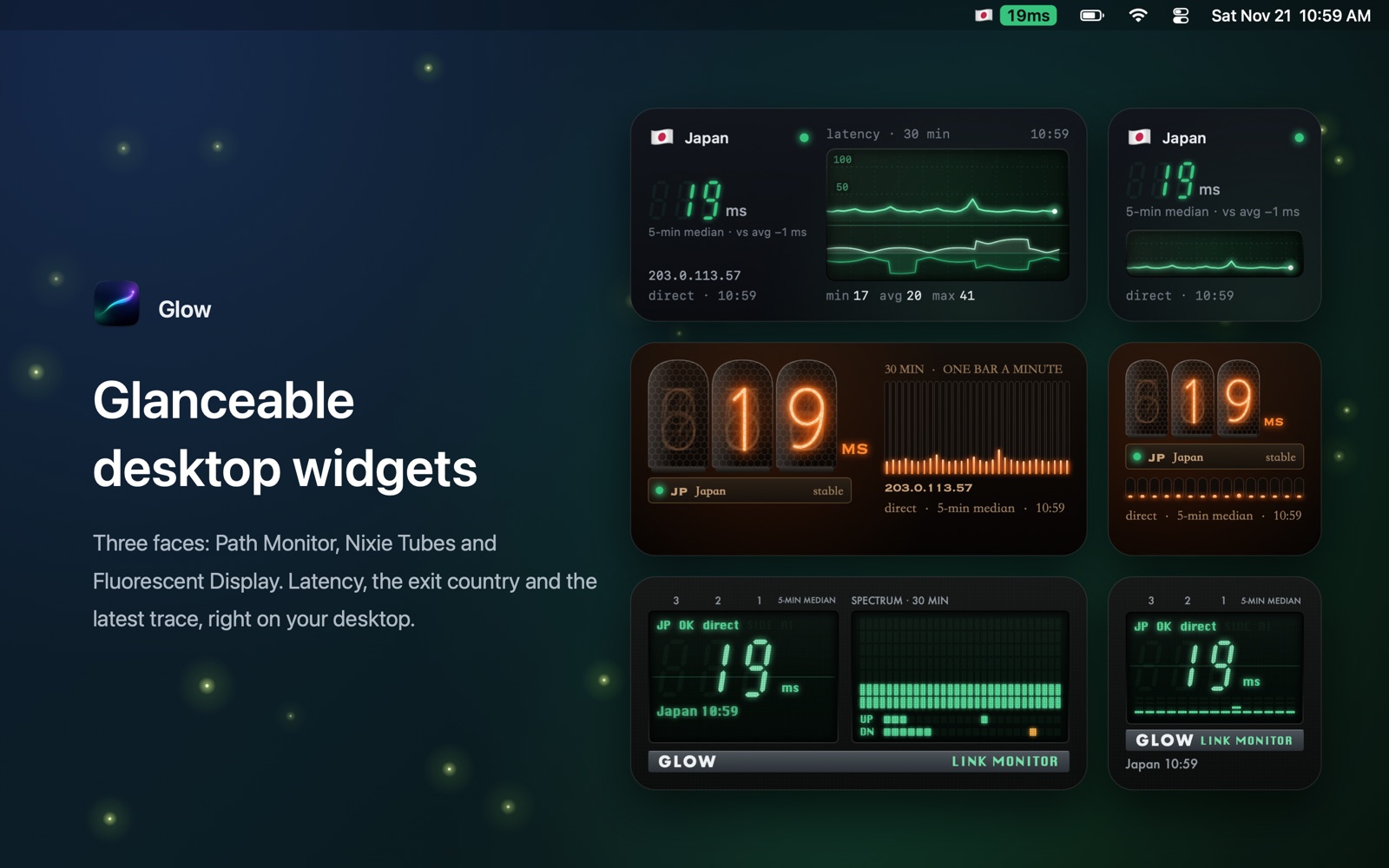
Right-click the desktop, choose Edit Widgets and search for "Glow". There are three faces, Path Monitor, Nixie Tubes and Fluorescent Display, each in two sizes.
Turn on "Launch at login" in Settings › General. It's off by default.
To show your public IP address, country and latency, Glow contacts some public web services directly, which see your public IP address like any website does. Glow needs no account and has no analytics, ads or crash reporting. We don't run a server, so we never receive any information from you. The full list is in the privacy policy.
Right-click the flag in the menu bar and choose "Quit Glow", then move Glow from the Applications folder to the Trash. To delete its records too, see section 4 of the privacy policy.
A problem, an AI app Glow doesn't recognize yet, or an idea? Email us.
jbbomlabs@gmail.comPlease include your macOS version, Glow's version (in About in the main window) and when it happened; a screenshot helps a lot. If needed, add what Copy (⌘C) in the panel gives you; it shows only the first two parts of your public IP address.